About key and signature tools

 The key / signature tool is a tool for performing a simple electronic signature on distributed data.
 With a digital signature, you can check that a file was created by a legitimate creator, check for falsification, and check for corruption.
 Now, File corruption check tool uses this signature.

About public and private keys

 In order to use the key / signing tool, you need to use this tool to create two key pairs, a "public key" (public key) and a "private key" You will need to create a key (key pair) that will become a (pair).
 The key is actually a string in the following format.

-----BEGIN PUBLIC KEY-----
MIGJAoGBAJYfPysW57qE3J2ddGWEG+RzXUzFkWa0ct3p7qJfuWDB+52DbfS9qSpw
iTHQ54vl7K35x+WDQdn29cfgJxp9UD3fzY4h6E2ReE9vj4h0FCMK8dpCFnQkOD/M
hDSiXfXz7KmfMXppM0CjofvH+IL7BJ3/GcLFcuEw3hEnzoajIm1TAgMBAAE=
-----END PUBLIC KEY-----

 A public key is a key that can be made public, and a private key is a key that must not be made public.
 The private key is used when signing. An electronic signature is generated using the private key.
 The public key is used to verify the signature. The private key and the public key are always paired, and only signatures made with the relevant private key can be successfully verified with the public key paired with the private key.
 Even if someone who does not know the private key signs with another private key, the signature cannot be confirmed with a valid public key. Since it is impossible to guess the private key from the public key, only the person who has the private key can sign a valid signature.

Note
Originally, when the "public key" is made public, it is necessary to make sure that the "public key" is valid. If you don't know if a public key is legitimate, the meaning of a digital signature is weaker. However, Kirikiri's key and signature tool does not take such considerations into account.


Note
The encryption method used by Kirikiri's key and signature tool was changed from ECC (elliptic curve cryptography) to RSA in 2.25beta7.
The RSA key generated by Kirikiri's key / signing tool is 1024 bits long. Also, the private key is not protected with a passphrase.
The RSA public / private key generated by Kirikiri's key / signing tool is compatible with the PEM format key of other software, but when using a key generated by other than key / signing tool, or key / signing The operation when the key generated by the tool is used by other software is not supported.
How to generate keys


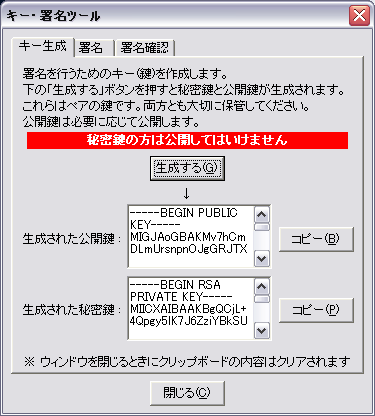
 When you start the key / signing tool (krkrsign.exe in the tools folder), the first thing that appears is the key generation screen.
sign0.png


"Generate" button
 Click to start key pair generation. At first, the window entitled "Collecting entropy" appears and asks you to move the mouse randomly, so follow the instructions (needed to generate keys that cannot be guessed by others).
 When the window closes, the generated key pair will be displayed in the "Generated public key" and "Generated private key" fields below.
Generated public key
 The generated public key is displayed. Press the "Copy" button on the side to copy the key to the clipboard.
Generated private key
 The generated private key is displayed. Press the "Copy" button on the side to copy the key to the clipboard.
 Please note that for security reasons, the contents of the clipboard will be cleared when you close this window.

How to signature


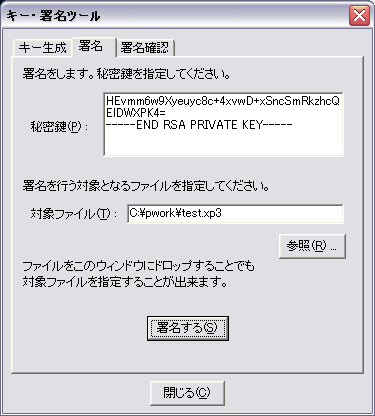
 Click the "Signature" tab to display the signature screen.
sign1.png


Secret key
 Please specify a secret key.
Target file
 You can specify the file to be signed.
 Press the "Browse" button to open the file reference dialog box. Specify the target file.
 You can also specify the target file by dropping the target file in this window (currently, multiple files cannot be signed at the same time).
"Sign" button
 Sign the target file.
 The signature file will have the file name of the target file with the extension .sig added, except in the case of Kirikiri core, where the signature is embedded in the core.

How to signature confirmation


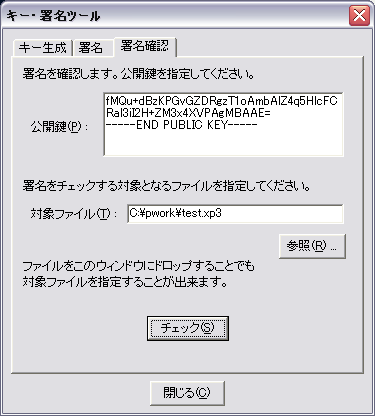
 Click the "Signature Confirmation" tab to display the signature screen.
sign2.png


Public key
 Please specify a public key.
Target file
 You can specify the file to be checked for signature.
 Press the "Browse" button to open the file reference dialog box. Specify the target file.
 You can also specify the target file by dropping the target file in this window. (Currently, this tool cannot check the signature of multiple files at once.)
"Check" button
 Check the signature of the target file.
 The result is notified in a message box.

Usage from command line

 You can sign files using the key and signature tool from the command line. This is useful when used in combination with tools such as make.
 Specify in the following format.

krkrsign -sign "Target file name" "Private key file name"
For the private key file name, specify a file in which the private key is saved as text.
For example, to sign game.eXe

krkrsign -sign "game.eXe" "key.priv"
 is specified. Only one file can be signed per call.